

actioneer-gtk
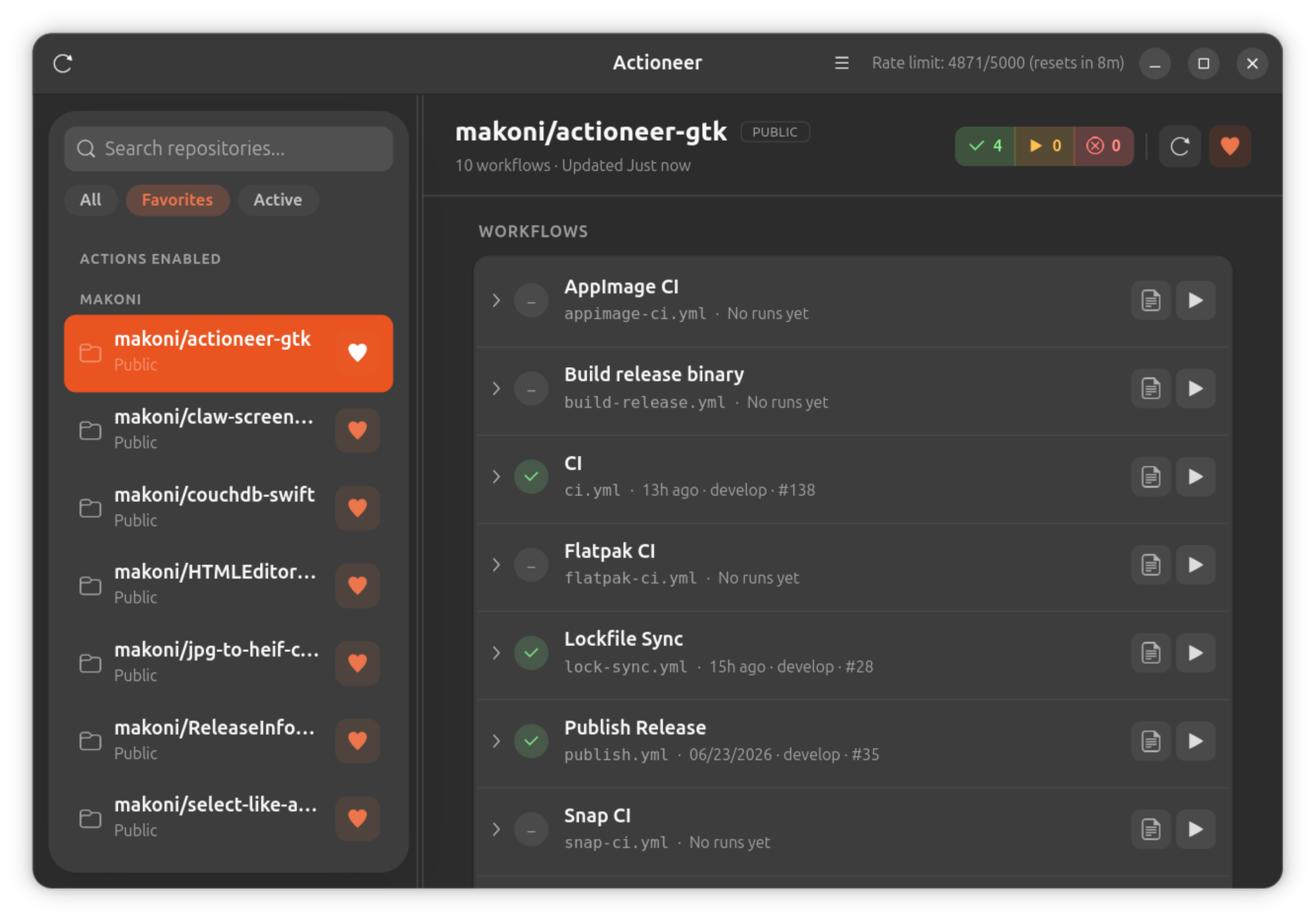
Actioneer lets you browse GitHub repositories, inspect workflow runs, check job logs, and refresh status without leaving your desktop.
Key features
- Browse your GitHub repositories and view Actions workflows and recent runs quickly.
- Inspect run status (success, failure, queued, in progress) with clear badges and counts.
- Filter runs and focus on what matters most.
- View job logs: download and preview run logs for quick troubleshooting.
- Dispatch workflows, cancel running workflows, and re-run failed runs directly from the app.
- Favorites and quick search let you focus on the repositories and workflows that matter most.
- Desktop notifications for run completions and failures so you never miss important results.
- Keep recent workflow data available offline.
- Fast refreshes that keep the interface responsive.
This package contains the desktop application, icons and AppStream metadata required for distribution via Flatpak/Flathub. See the project repository for source code, contribution guidelines, and additional documentation.
Compatibility: Self-contained, does not depend on the C library of the system (ships its own C library)
GitHub Download actioneer-gtk Website actioneer-gtk Bugtracker Donate
Usage
actioneer-gtk is available as an AppImage which means "one app = one file", which you can download and run on your Linux system while you don't need a package manager and nothing gets changed in your system. Awesome!
AppImages are single-file applications that run on most Linux distributions. Download an application, make it executable, and run! No need to install. No system libraries or system preferences are altered. Most AppImages run on recent versions of Arch Linux, CentOS, Debian, Fedora, openSUSE, Red Hat, Ubuntu, and other common desktop distributions.
This AppImage is self-contained: it does not need a compatible C library (such as glibc) on the system, because it ships its own C library. Hence it should also run on older distributions and on distributions that use a different C library (such as musl on Alpine Linux).
Running actioneer-gtk on Linux without installation
Unlike other applications, AppImages do not need to be installed before they can be used. However, they need to be marked as executable before they can be run. This is a Linux security feature.Beware! AppImages are usually not verified by others. Follow these instructions only if you trust the developer of the software. Use at your own risk!
Download the actioneer-gtk AppImage and make it executable using your file manager or by entering the following commands in a terminal:
chmod +x ./*.AppImageThen double-click the AppImage in the file manager to open it.
Sandboxing actioneer-gtk
If you want to restrict what actioneer-gtk can do on your system, you can run the AppImage in a sandbox like Firejail. This is entirely optional and currently needs to be configured by the user.
Updating actioneer-gtk
If you would like to update to a new version, simply download the new actioneer-gtk AppImage.
The actioneer-gtk AppImage also can be updated using AppImageUpdate. Using this tool, actioneer-gtk can be updated by downloading only the portions of the AppImage that have actually changed since the last version.
Integrating AppImages into the system
If you would like to have the executable bit set automatically, and would like to see actioneer-gtk and other AppImages integrated into the system (menus, icons, file type associations, etc.), then you may want to check the optional appimaged daemon.
Note for application authors
Thanks for distributing actioneer-gtk in the AppImage format for all common Linux distributions. Great! Here are some ideas on how to make it even better.
Pro Tips for further enhancing the actioneer-gtk AppImage
Thanks for shipping AppStream metainfo inside your AppImage. Please open a pull request on https://github.com/AppImage/appimage.github.io/blob/master/data/actioneer-gtk if you have changed it and would like to see this page updated accordingly.